Portable SSD Buying Guide: Compatibility Before Headline Speed
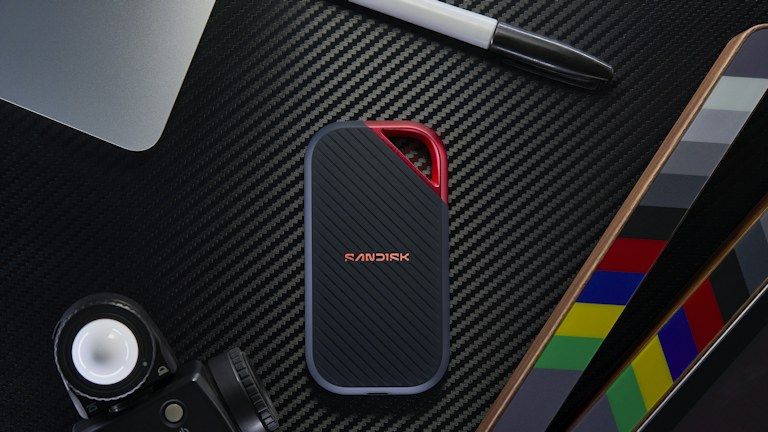
Photo: Sandisk / Unsplash License. Stock photograph for illustration; no product endorsement is implied.
A portable SSD can make large files easier to carry and move, but the fastest number on the package is only one part of the decision. The computer's connection, the supplied cable, the type of transfer and the way you protect the data all affect its usefulness. A drive can be technically fast while being a poor fit for the actual task.
This guide explains what to compare before buying and how to check a new drive with disposable test material. It is not a benchmark review or a recommendation of a particular model. Use the manufacturer's current documentation for the exact drive and computer, especially where encryption, compatibility or performance claims influence your choice.
In this guide
- Define the drive's main role
- Match the connection to the computer
- Read performance claims in context
- Choose capacity with room for the workflow
- Understand file-system compatibility
- Consider protection and access together
- Evaluate physical handling realistically
- Check support, warranty and authenticity
- Run an acceptance test before relying on it
Define the drive's main role
Decide whether the drive will carry working files, transfer material between computers, hold a media library or serve as one part of a backup arrangement. These uses place different demands on capacity, speed and organization. A drive used for occasional document transfer may not need the same performance as one used for large active video projects.
Do not make a portable drive the only copy of important material. Portability also means the device can be lost, damaged or left behind. Plan where another appropriate copy will live and how often it will be updated. The buying decision should include that workflow rather than treating the new storage device as a complete data-protection system by itself.
Match the connection to the computer
Check the supported data connection on the computer and compare it with the drive's requirements. Similar connector shapes can support different capabilities. The drive, port and cable must work together to reach the intended performance. A faster drive cannot overcome a slower link simply because the cable fits physically.
If you plan to connect through a hub or dock, include that device in the comparison. Shared bandwidth and other connected equipment can affect results. For demanding transfers, test a direct connection as a useful reference where possible. Record the intended connection path so you know whether an unexpected slowdown comes from the drive or another part of the setup.
Read performance claims in context
Manufacturers may publish maximum transfer figures measured under particular conditions. Your results can differ with file sizes, workload, available capacity, temperature and connection details. Moving one large file is not identical to moving thousands of small files. Choose evidence that resembles the work you expect the drive to perform.
Consider sustained work as well as brief transfers if you routinely move large amounts of data. Look for clear testing conditions in independent measurements and manufacturer documentation. Avoid comparing numbers produced by different methods as if they were interchangeable. The useful question is whether the drive handles your workload reliably, not whether it wins a specification comparison detached from your computer.
Choose capacity with room for the workflow
Estimate the material you need to carry and how it will grow during the period you expect to use the drive. Include temporary exports and active project assets where relevant. Buying exactly enough for today's files can create an immediate housekeeping problem, while buying far more than needed may divert money from a better backup arrangement.
Check how capacity is reported by the manufacturer and by your operating system. Some difference in displayed capacity can arise from measurement conventions and formatting. Focus on whether the usable space meets your needs. Plan a simple folder structure before loading the drive so it does not become a collection of unrelated copies whose purpose is difficult to identify.
Understand file-system compatibility
The format used on the drive affects which systems can read and write it and what features are available. Choose according to the computers and applications involved, using current operating-system guidance. A format suitable for moving files between different platforms may have different capabilities from one designed primarily for a single platform.
Formatting can erase existing contents, so treat it as a deliberate setup action and preserve any data already on the device. Do not follow a generic formatting recommendation without checking your use case. If a workplace manages storage configuration, use the approved process rather than changing the drive independently for convenience.
Consider protection and access together
If the drive will carry sensitive material, determine what encryption and access controls are appropriate. Understand how recovery works and where authorized recovery information should be stored. Encryption can protect data if a drive is lost, but it can also make your own files inaccessible if the required credentials are unavailable.
Check whether security features depend on companion software and whether that software works on every computer you intend to use. A convenient unlock method on one platform may not support another. Keep sensitive recovery details out of ordinary labels or notes stored beside the drive. Physical identification and secure access planning should serve different purposes.
Evaluate physical handling realistically
Look at connector protection, cable replacement, size and how the drive will travel. A compact device can be convenient but easier to misplace. Ruggedness claims should be read with their conditions rather than treated as permission to handle the drive carelessly. A protective rating may not cover every type of damage or preserve data under all circumstances.
Keep cables organized and avoid leaving the drive hanging from a port. When using it at a desk, place it where it will not be pulled by a moving chair or covered in a way that conflicts with the manufacturer's instructions. Everyday handling often matters more than an elaborate exterior if the device is repeatedly exposed to cable strain.
Check support, warranty and authenticity
Buy through a source you can identify and keep the receipt and exact model details. Check the manufacturer's warranty terms and support route in your region. A very low advertised price should prompt careful verification of the seller and product rather than an assumption that every listing describes the same genuine device.
Understand that a hardware warranty does not necessarily provide data recovery. Keep independent copies of important material regardless of the warranty length. If the manufacturer provides a diagnostic or update tool, obtain it from the official source and read the instructions before using it. Do not install unrelated utilities merely because a search result promises to improve performance.
Run an acceptance test before relying on it
Use disposable files to confirm copying, reopening and the intended cross-computer workflow. Compare a few copied files with their originals and test the applications that will use them. Safely eject the drive according to your operating system's procedure before disconnecting. Complete these checks while you can still address compatibility issues through the seller or manufacturer.
A suitable portable SSD should fit the connection, capacity and protection needs of your actual work. Speed remains useful, but it belongs inside that larger decision. A drive you can use predictably and protect properly is a better tool than a faster specification attached to an uncertain workflow.