Choose a Monitor Arm That Fits Your Screen and Desk
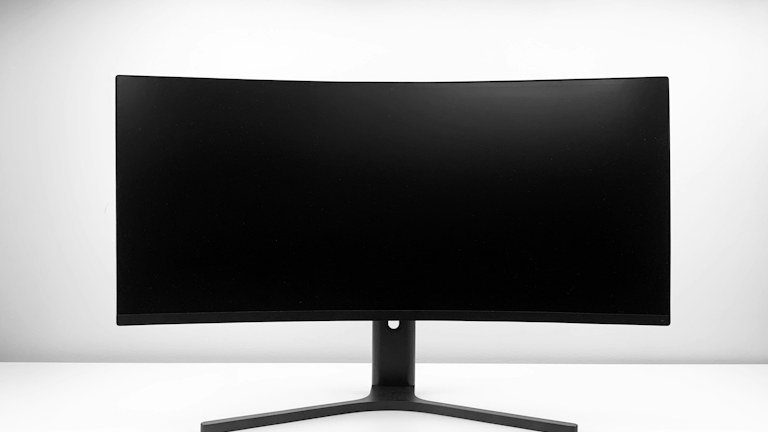
Photo: Mediamodifier / Unsplash License. Stock photograph for illustration; no product endorsement is implied.
A monitor arm can free desk space and make screen positioning more flexible, but it also places the monitor's weight on a mounting system and the desk beneath it. Buying by screen size alone misses important details. Weight range, mounting pattern, desk construction and the movement you need all influence whether an arm is appropriate.
This guide explains how to compare those requirements without assuming that one style suits every workstation. It is not a hands-on review of a particular product. Check the exact monitor, arm and desk documentation before purchase, and follow the supplied installation instructions rather than improvising a mounting arrangement.
In this guide
- Identify the monitor's mounting requirements
- Inspect the desk before choosing the mount
- Decide what movement you really need
- Consider one screen and two screens differently
- Examine adjustment and stability
- Plan cable routing before installation
- Compare installation and support information
- Work through a desk example
- Check the setup after mounting
Identify the monitor's mounting requirements
Find the monitor's model number and official specifications. Confirm whether it supports a standard mounting pattern or requires a model-specific adapter. Measure or verify the mounting-hole arrangement through documentation rather than relying on the monitor's diagonal size. Two screens of the same size can have different mounting needs.
Check the weight of the monitor without its original stand, along with any accessories that the arm will carry. Compare that figure with the arm's stated operating range. Some mechanisms need a minimum load as well as respecting a maximum. A screen that is too light or too heavy for the mechanism may not remain where you position it.
Inspect the desk before choosing the mount
Determine how the arm attaches: a desk clamp, a grommet opening, a wall mount or another approved method. For a desk clamp, check the supported thickness and the space available beneath the edge. Drawers, cable trays and support rails can prevent the clamp from sitting as intended even when the desktop looks suitable from above.
Desk material matters. Glass, hollow-core construction and some lightweight surfaces may require special treatment or may be unsuitable for a particular mount. Consult the desk and arm manufacturers rather than assuming a reinforcement plate solves every problem. The mounting surface must safely support the load and the forces created when the monitor is extended or moved.
Decide what movement you really need
Write down the positions you expect to use. You may only need a fixed height adjustment, or you may want to move the screen between sitting and standing positions, share it with a colleague or rotate it for reading long documents. Different arms provide different reach, height and rotation ranges.
Measure the available space behind and beside the desk. Some arms need room to fold backward, while others can remain closer to a wall. An arm with generous reach is not automatically useful if its joints collide with a shelf or the wall. Compare the movement diagram with your actual workspace rather than imagining the arm in an empty showroom.
Consider one screen and two screens differently
A dual-monitor setup introduces more than twice the weight. Screen width, alignment and the position of each arm can affect how the displays fit together. Confirm the manufacturer's limits for each mount and for the overall arrangement. A combined weight figure may not tell you whether one unusually heavy screen is supported.
Think about how often the screens move independently. Separate arms can offer flexibility, while a shared system may simplify some arrangements. Neither is universally better. Sketch the intended positions and check whether the arm's joints can achieve them without forcing cables tight or placing the screens farther away than you want.
Examine adjustment and stability
Look for clear information about how height, tilt and tension are adjusted. Some changes may require a tool, while others are intended for frequent movement. A setup adjusted once and left alone has different priorities from a shared desk used by several people each day.
Stability depends on the whole system, including the desk. An arm cannot prevent movement caused by a flexible desktop or an unstable base. Read detailed user feedback cautiously and look for conditions that resemble your own setup. A report of wobble with a large screen on a light desk may not describe a smaller screen on a sturdier surface.
Plan cable routing before installation
Check that power and display cables are long enough for the full intended range of motion. Leave suitable slack at moving joints and follow the arm's cable-management instructions. A cable that fits when the screen is centered may pull on a connector when the arm extends or the display rotates.
Avoid using the cable channels to force an incompatible cable into a tight bend. If you need a different cable length, verify its electrical and display capabilities as well as its physical fit. Good cable routing keeps the setup neat while allowing movement without strain. It should not conceal a connection that is being pulled every time the monitor moves.
Compare installation and support information
Read the installation guide before purchase if it is available. Check what tools and assistance are required, which fasteners are supplied and whether adapters must be bought separately. Do not substitute screws casually; the monitor's specified screw dimensions and depth matter. Incorrect hardware can damage equipment or create an insecure mount.
Use help when the instructions call for it or when the screen is awkward to handle. If the desk or wall suitability is uncertain, seek appropriate advice before mounting. A return policy is useful for a compatibility mismatch, but it is not a substitute for checking the load and mounting surface before placing valuable equipment on the arm.
Work through a desk example
Imagine a monitor on a shallow desk placed against a wall. The screen's weight and mounting pattern match several arms, but one design needs significant space behind its base to fold. Another offers the required position within the available depth. The second may be the better fit even if the first advertises a greater maximum reach.
Now add a cable tray beneath the rear edge. The clamp location must be checked again. This example shows why a monitor arm is a system purchase rather than a screen-size accessory. The monitor, desk, room and cables all affect whether the promised adjustment range becomes useful in everyday work.
Check the setup after mounting
Follow the manufacturer's adjustment procedure and confirm that the monitor stays in the intended positions without unexpected movement. Inspect the clamp or other attachment as instructed and check cable slack through the full range you plan to use. Keep the installation guide and model details for later adjustments or a monitor replacement.
A successful purchase gives you a stable screen position and appropriate flexibility without stressing the desk or connections. Choose the arm that fits those needs, even if its specification list is less dramatic than another model's. Reliable fit is more valuable than movement you cannot safely use in your actual workspace.