How to Choose a USB-C Hub for Your Actual Desk Setup
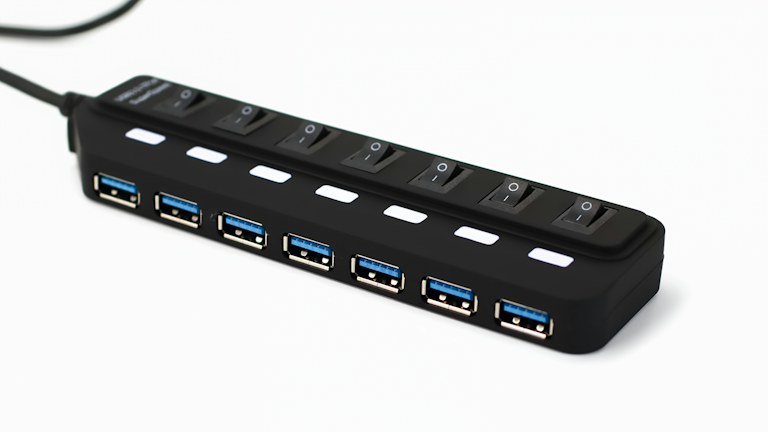
Photo: Barry A / Unsplash License. Stock photograph for illustration; no product endorsement is implied.
A USB-C hub looks like a simple way to turn one laptop port into several useful connections. The difficulty is that a familiar connector shape does not tell you everything about charging, data transfer or display support. A hub can have the right sockets and still fail to support the combination you intend to use. The most reliable buying process starts with your computer and peripherals rather than the largest number printed on a product page.
This is a selection guide, not a report of hands-on testing or a ranking of named products. Use it to prepare a compatibility checklist and compare the current documentation for the exact models you are considering. Stock photographs illustrate the category and do not establish the capabilities of a pictured device.
In this guide
- Inventory the connections you actually need
- Check the laptop's port capabilities
- Treat display support as a separate requirement
- Understand charging through the hub
- Consider shared bandwidth and storage use
- Check physical layout and daily handling
- Compare documentation and support
- Plan a controlled acceptance test
Inventory the connections you actually need
List the devices you connect during an ordinary work session: monitor, keyboard, pointing device, storage, network cable and charging supply. Note which must work simultaneously. A hub that supports each item separately may behave differently when several share its available bandwidth or power. Include the cables and adapters in the list because they can introduce their own limitations.
Separate permanent desk connections from occasional travel needs. A compact hub can suit a small mobile kit, while a larger powered dock may make more sense for a fixed workstation. Do not pay for several rarely used ports at the expense of a reliable connection you need every day. The inventory makes those priorities visible before you compare specifications.
Check the laptop's port capabilities
Find the official documentation for the exact computer model and the port you intend to use. USB-C describes a connector, while the supported functions depend on the device and implementation. Look for the relevant data, display and charging capabilities rather than assuming that every USB-C port behaves the same way.
If the computer has several similar-looking ports, confirm whether their capabilities differ. A product page for a related laptop model may not answer the question. Record the model and the supported functions in your checklist, then compare them with the hub's requirements. A hub cannot generally add a host capability that the computer does not provide through the selected connection.
Treat display support as a separate requirement
Write down the monitor's resolution, refresh rate and input options. If you need more than one display, confirm that the complete combination is supported by the laptop, operating system and hub. Marketing language about dual displays can hide important conditions, including whether screens extend the desktop or mirror one another.
Read the manufacturer's compatibility notes for your platform. Some arrangements depend on additional software or a particular technology, and those details can affect setup and organizational approval. Avoid buying solely from the presence of two video sockets. The meaningful question is whether the exact display arrangement works through your computer under the conditions you intend to use.
Understand charging through the hub
If the hub supports charging pass-through, compare its documented input and host-delivery limits with the computer's needs. Some power may be reserved for the hub and attached devices. A headline input rating is not necessarily the amount available to the laptop. Check whether a suitable charger is included or must be supplied separately.
Include the charging cable in the compatibility check. Use equipment that meets the relevant manufacturer's requirements rather than assuming that any cable with the right ends is suitable. If the laptop charges slowly under load, several parts of the chain could be responsible. Documenting the intended charger, cable and hub makes troubleshooting more straightforward after purchase.
Consider shared bandwidth and storage use
A fast external drive, network adapter and display can place different demands on the same connection. Compare the hub's overall capabilities and any notes about shared ports, not just the speed label beside one socket. For routine documents, maximum transfer performance may matter less than stability; for large media transfers, the connection limits can be more consequential.
Decide whether an important storage device should connect directly to the laptop instead. That can simplify the path during demanding work, depending on the available ports. Avoid assuming that a hub is defective because a device does not achieve its own advertised maximum through every possible arrangement. Evaluate the whole connection path and the conditions under which the figures were measured.
Check physical layout and daily handling
Look at port spacing, cable direction and the length of the host cable. Closely packed sockets can be awkward with wide adapters. A short fixed cable may leave the hub hanging from a laptop stand, while a larger dock needs a stable place on the desk. These details affect daily use even when the electronics are compatible.
Consider ventilation and the manufacturer's placement instructions. Hubs can become warm during operation, but unusual heat or instability deserves investigation through the support process. Do not cover a device or place strain on its cable simply to make the desk look tidier. A practical layout protects connections and makes frequently used ports easy to reach.
Compare documentation and support
Prefer a product whose manufacturer publishes clear compatibility information, specifications and support instructions. Check the exact model number, because similar product names can cover different revisions. Look for firmware or software requirements where applicable and determine whether you can install them in your work environment.
Read the return policy before buying, especially when your display or charging arrangement is complex. A reasonable compatibility test may be necessary even after careful research. Keep packaging and proof of purchase while you verify the setup. Do not interpret a broad compatible with laptops statement as a guarantee for every combination of computer, monitor and peripheral.
Plan a controlled acceptance test
After purchase, connect one function at a time and confirm normal behavior before adding the rest. Test the full combination you intend to use, including sleep and wake if that is part of your routine. Transfer disposable test files before relying on a new connection for important work, and safely eject storage according to the operating system's instructions.
Record any failure with the computer model, cables, attached devices and sequence that triggers it. This is more useful to support than a general statement that the hub does not work. If the required arrangement remains unreliable, use the return or support route rather than building a daily workflow around repeated reconnecting. The right hub should make your desk simpler, not add a new troubleshooting ritual.